
Features
Overview of file uploads, memories, Studio capabilities, System Designer AI, and the MCP server.
Files: Share Documents and Images with Connext Chatbot
The Files feature lets you upload and share documents directly in your chatbot conversation. This option makes it easier to tackle complex tasks like reviewing log files, analyzing design documents, or even writing code based on a photo of a whiteboard sketch. To upload, use the paperclip icon or simply drag and drop to generate more relevant, context-aware responses.

Drag and drop files or use the paperclip icon to upload files directly in the chat.
Supported File Types
- Text and data:
.txt,.idl,.json,.xml,.csv - Documents:
.pdf,.docx,.xlsx,.xls - Images:
.jpg,.jpeg,.png,.gif,.webp
File uploads are limited to 5 per day, and the maximum file size is 20 MB. Note that images in PDF files are not yet parsed, but will be in a future release.
Memories: Create Smarter, More Personalized Conversations
Memories let you store and manage personal preferences to streamline your experience across the entire Connext AI platform, including the chatbot, System Designer, and Studio.
You can save preferences such as:
- Your preferred RTI product
- Your target release version
- Your go-to programming language
These saved preferences help Connext AI tailor its responses to your specific development context, reducing repetitive setup and making your interactions faster and more relevant.
Creating a Memory
Creating a Connext AI memory is as simple as typing your preference in the chatbot; just tell it what to remember. For example:
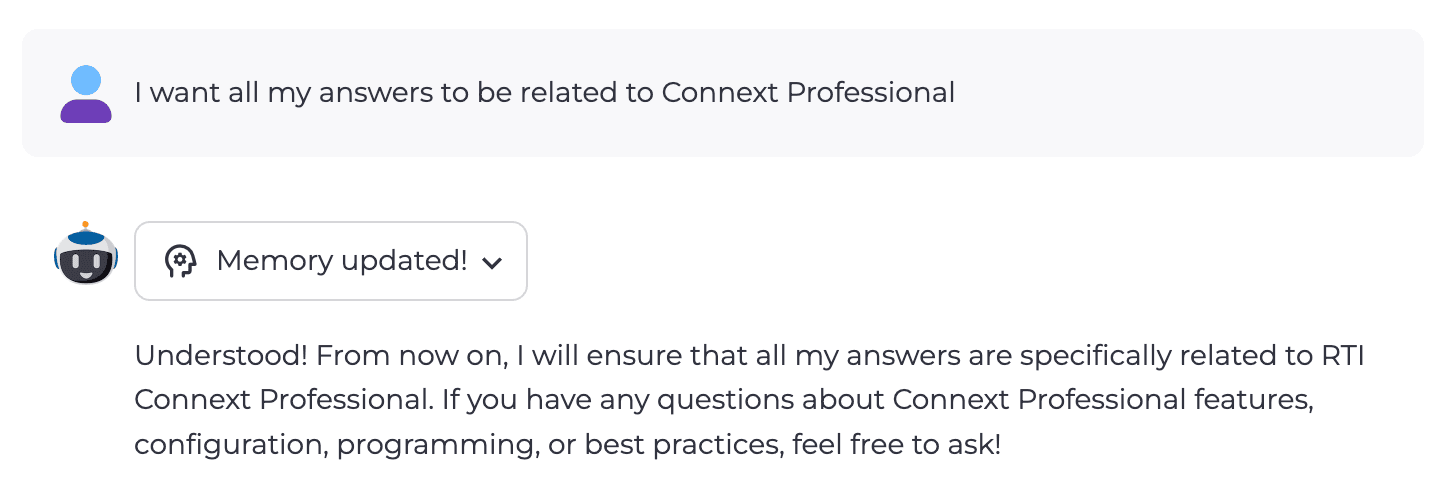
Example: Creating a memory.
Managing Memories
After creating some memories, you can manage them in the Preferences dialog. Click your profile button in the bottom left corner of the sidebar and select Preferences.
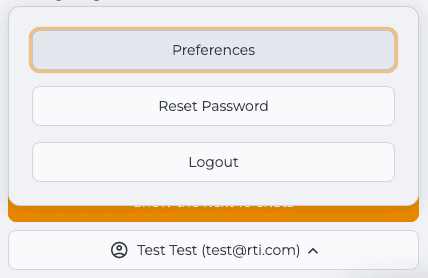
Example: Accessing your preferences.
In the Preferences dialog, you can view, edit, or delete stored memories.
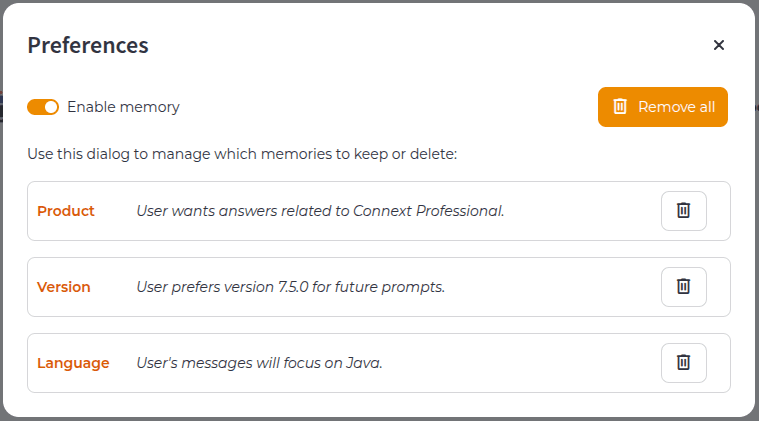
Example: Managing your memories.
- Product is the RTI Connext product you want answers about, which can be Connext Professional, Connext Micro, Connext Drive, Connext TSS, or Connext Cert.
- Version is the release number for your selected product, for example
7.3.0or6.1.2. - Language is your preferred programming language. This option is especially useful for generating snippets of code.
Connext Studio Features
To see everything Connext Studio can do, like context-aware code suggestions, AI-powered insights, and system design, see the overview in the VS Code Marketplace or OpenVSX Marketplace. This page includes a full list of features, screenshots, and setup instructions to help you get started quickly.
Chat with System Designer Features
To explore System Designer's AI features, see RTI's documentation here.
Connext MCP Server
The Connext MCP server allows you to integrate Connext AI into any MCP-compatible client. Your agent can send questions directly to Connext AI and use the responses as context for its responses. For example, an agent could ask a question about how to configure a specific QoS policy in Connext, and then use the response to inform its next steps in configuring a system design. We are actively working on adding more tools and capabilities to the MCP server, so stay tuned for updates.
To get started, refer to the Getting Started page.